
Post to PDF
Turn Every Post and Page into a
Downloadable PDF — Instantly
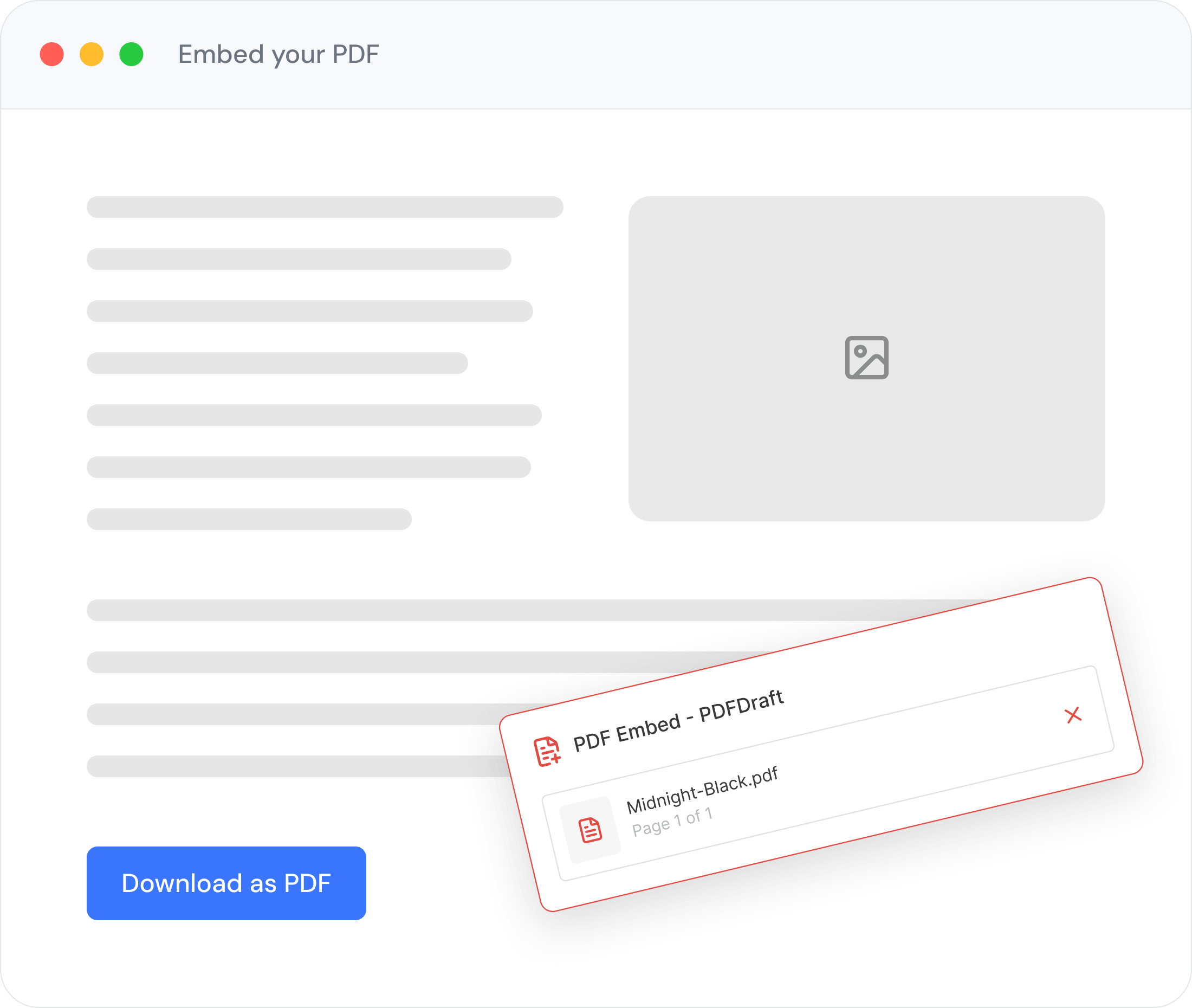
Flip one toggle and PDFDraft adds a download button to all your posts and pages. Visitors get a branded PDF — you get zero extra work. No coding, no shortcodes, no manual exports.
1 Toggle
To Enable Everything
Auto
Download Button Added
Custom
PDF Filename Patterns
Per-Post
Override Control
How It Works
One Setting. Every Post Gets a PDF.
Go to PDFDraft → Settings, enable Posts to PDF, pick a template, and save. That’s it. PDFDraft automatically adds a download button to every published post and page you choose — no shortcodes, no page-by-page setup.
Enable separately for posts, pages, or both — your choice
Pick any PDF template you’ve built in the visual editor
Works on all existing posts — no republishing required
PDFs are generated on demand — nothing stored until a visitor clicks download
Download Button
Your Readers See a Clean Button. You Control Everything About It.
The download button appears automatically — but you decide where it sits on the page, what it says, and whether it shows at all. A loading spinner keeps readers informed while the PDF is being generated.
Position — place the button before or after your post content
Per-post visibility — show, hide, or follow global setting on any individual post
Loading spinner — readers know their PDF is being prepared, not just waiting in silence


Filename Pattern
{post_title}
{post_date}
{post_id}
{post_type}
Example: my-blog-post-2025-01-15.pdf
Output Settings
Give Every PDF a Meaningful Name and Control What Goes Inside
Filename patterns — use {post_title}, {post_date}, {post_id}, and {post_type} to build dynamic names
Include images — toggle whether post images are embedded in the PDF or left out for a lighter file
Template selection — choose a global template per content type, or override per post
Save shortcut — use Ctrl/Cmd+S to save settings without reaching for the button

Per-Post Control
Override Any Setting for Any Individual Post or Page
Global settings apply to all your content — but sometimes one post needs to be different. Open any post in the WordPress block editor, look for the PDF panel in the right sidebar, and you can swap the template, show or hide the button, or follow the global setting. No need to touch your global configuration at all.
In the Gutenberg Sidebar
Select a different PDF template for this post only
Show or hide the download button on this post only
FAQ
Common Questions About Post to PDF
Yes. Once you enable Post to PDF and save your settings, the download button appears on all published posts and pages that match your configuration — including older ones. You don’t need to re-publish or edit any existing content. If the button doesn’t appear, double-check that the correct content type (Posts or Pages) is toggled on in settings.
Yes. Open the post in the WordPress block editor and look for the PDF settings panel in the right-hand sidebar. From there you can select any template you’ve built in PDFDraft — it will only apply to that individual post, leaving your global template setting untouched.
PDFDraft gives you an Include Images toggle in settings. When enabled, images from your post content are embedded directly in the generated PDF. When disabled, only text content is included — useful if you want a lighter file or a cleaner, text-only layout. The setting applies globally but you can pair it with per-post template overrides for more control.
Yes. Open the post or page in the block editor and find the PDF panel in the right sidebar. Set the button visibility to Hide for that piece of content. This overrides the global setting just for that post — all your other posts continue to show the button as normal.
Go to PDFDraft → Settings and find the filename pattern field. You can build a dynamic filename using placeholders like {post_title}, {post_date}, {post_id}, and {post_type}. For example, a pattern of {post_title}-{post_date} would produce a file called “my-article-2025-06-01.pdf”. Save the setting and all new PDF downloads will use the new name.
Start Personalising Today
Every PDF, Personalised Automatically
Install PDFDraft free and start using Smart Tags in minutes. Drop a WP Data Field, type a forward slash, and let your WordPress data do the work.